
Audio camera support
-
ASUS Devices Issue, no front facing camera
1. Press windows key + X, release, then press the M key choose allow to open Device Manager
2. Find cameras in the list and expand branch
3. Right click on usb/Realtek camera and choose update driver
4. Select browse my computer for drivers
5. Select let me pick from a list of available drivers
6. In the list select USB Video Device and choose next then finish
7. Restart computer if promptedThings to try before contacting IT Support
Check for malware from the links at the IT Support page then Restart your computer
Speakers
Check your audio is not muted by clicking on the slider bar see below
(Muted)
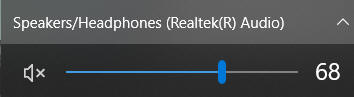
(Unmute)
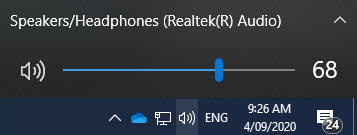
If this doesn't resolve your issue Right click the audio icon and Click Troubleshoot Sound Problems
Follow the prompts through and check that the device is enabled at the bottom of the speaker's page choose ok
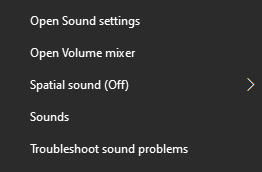
Then test that your audio is working
Camera and Microphone Issues
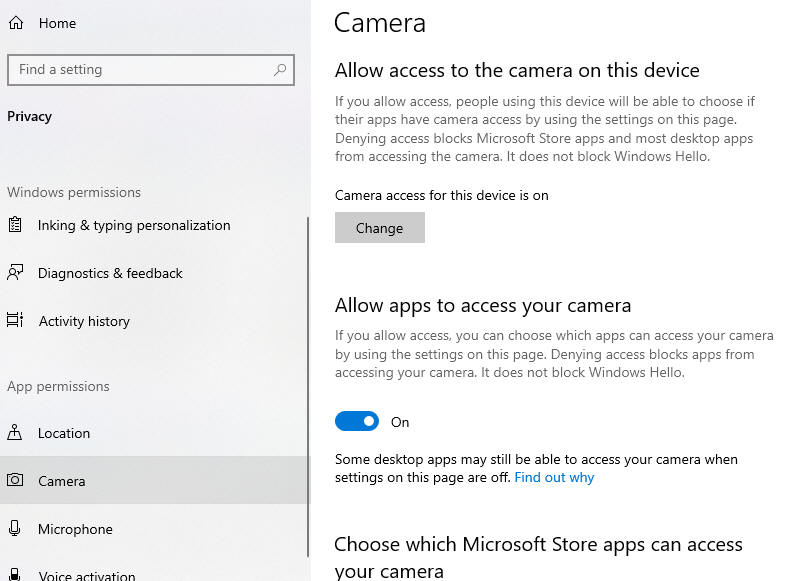
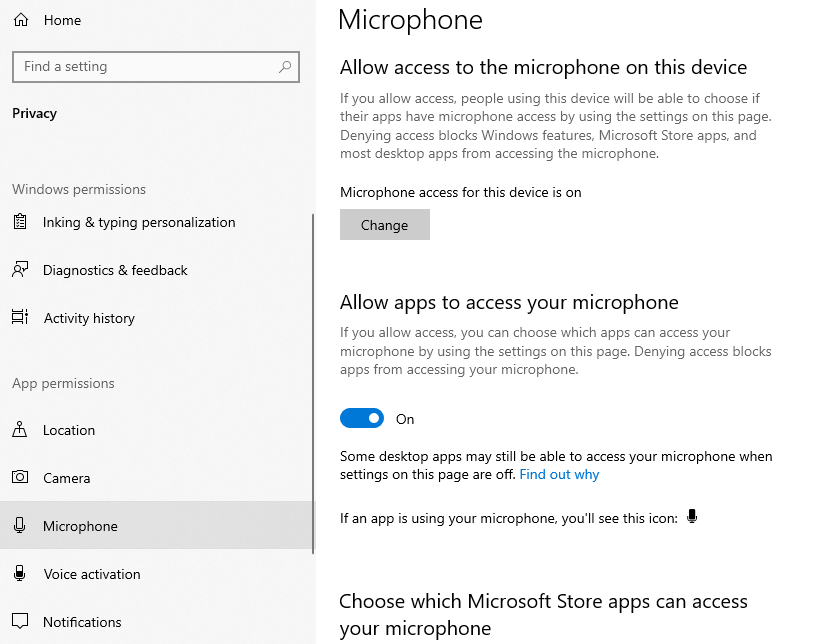
Right Click on the Windows icon and click Settings then Privacy
Locate the App Permissions in the left-hand column and verify that this is set to On
Continue to the bottom of the page for other fixes. If this doesn't fix your issue or contact IT Support
Additional Information
https://support.microsoft.com/en-us/help/4520288/windows-10-fix-sound-problems