Audio camera Microphone support
-
Camera Test - Click Here
- Select open
- Click on USB Webcam
- No Webcam do the following
- Check WebCam Privacy - Click Here
- Asus
ASUS Devices Issue, no front facing camera
Either right click on the Start Menu
 and select Device manger or
Press windows key + X, release, then select Device
Manager from the menu
Find cameras in the list and expand branch by clicking
the right arrow at the left of the listed devices>
Here you'll see 2 devices Intel AV stream camera and USB
2.0 Web Cam
Right click on the USB 2.0 Web Cam/Realtek camera and
choose update driver
Select browse my computer for drivers
Select let me pick from a list of available drivers on
my computer
In the list select USB Video Device
Choose next then Close
Test the camera
Click the Windows button and type camera, then select
camera
If the rear camera appears select the camera swap icon
located below the x in the right hand corner of the
window
You should see your webcam, check that the shutter is
open (if you see a orange circle its closed)
Important: Please Close the camera app before making Teams calls
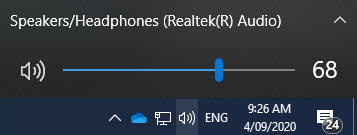
Check your audio is not muted by clicking on
the slider bar see below
Muted sees the X next to the speaker icon
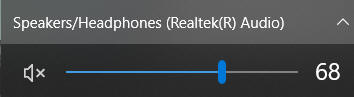
Unmuted Pressing volume up or clicking on
the speaker to remove mute.
If this doesn't resolve your issue Right
click the audio icon and Click Troubleshoot Sound Problems -
Link
Follow the prompts through and check that the device is enabled at
the bottom of the speaker's page choose ok
Troubleshoot
Then test that your audio is working
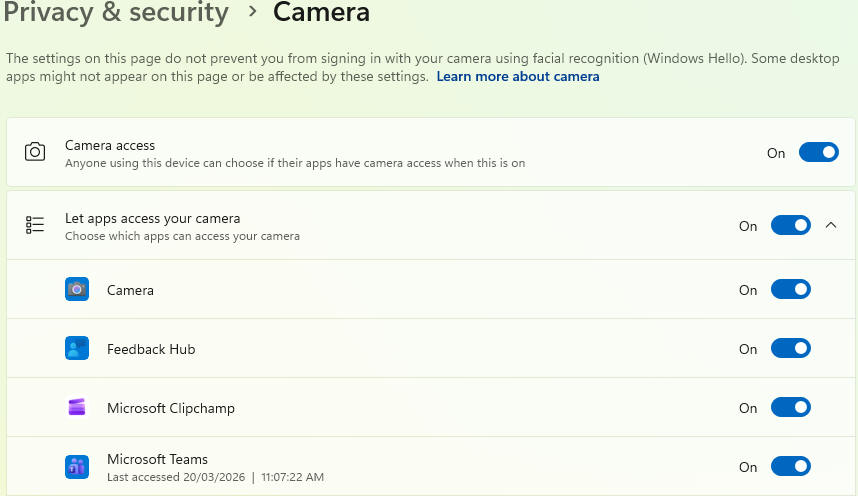
Right Click on the Windows icon and click
Settings then Privacy -
Camera Link
Locate the App Permissions in the left-hand column and verify that
this is set to On
Ensure that Microsoft Teams is toggled on
Right Click on the Windows icon and click
Settings then Privacy -
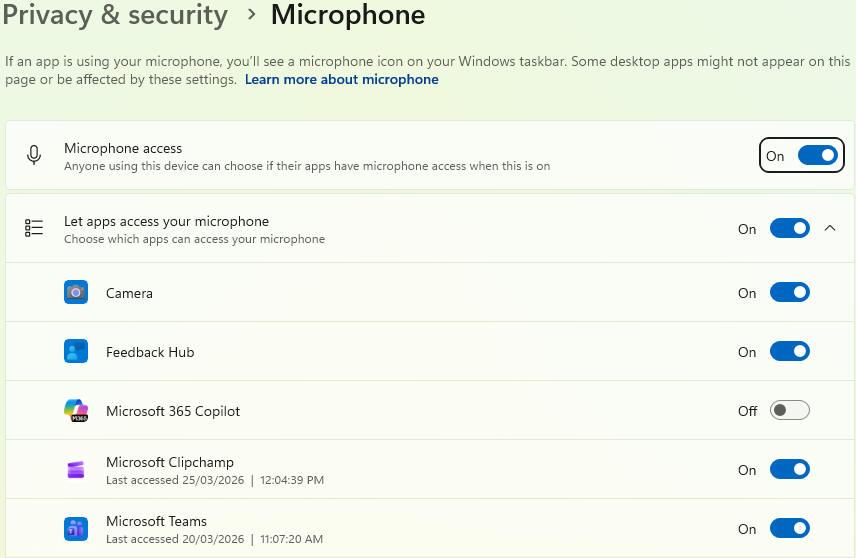
MicrophoneLink
Locate the App Permissions in the left-hand column and verify that
this is set to On
Ensure that Microsoft Teams is toggled on